
Choose one photo or document you are allowed to manage. During normal access, check where its original lives and whether another usable copy exists. Keep the original in place. Unknowns can stay blank; you do not need new equipment, a helper or a complete family archive to start.
If the device is failing, damaged or possibly compromised, stop the exercise and seek qualified help before connecting storage. Urgent care, reporting, necessary communication and departure come before an archive check. Do not turn off prescribed care or assistive technology to practice a device loss.
Family data is not one folder. Photos may live on phones, messages, memory cards, shared albums and a laptop library; household documents may be in email, apps, paper files or a provider portal. A device recovery key can matter long after setup, when the original computer is unavailable.
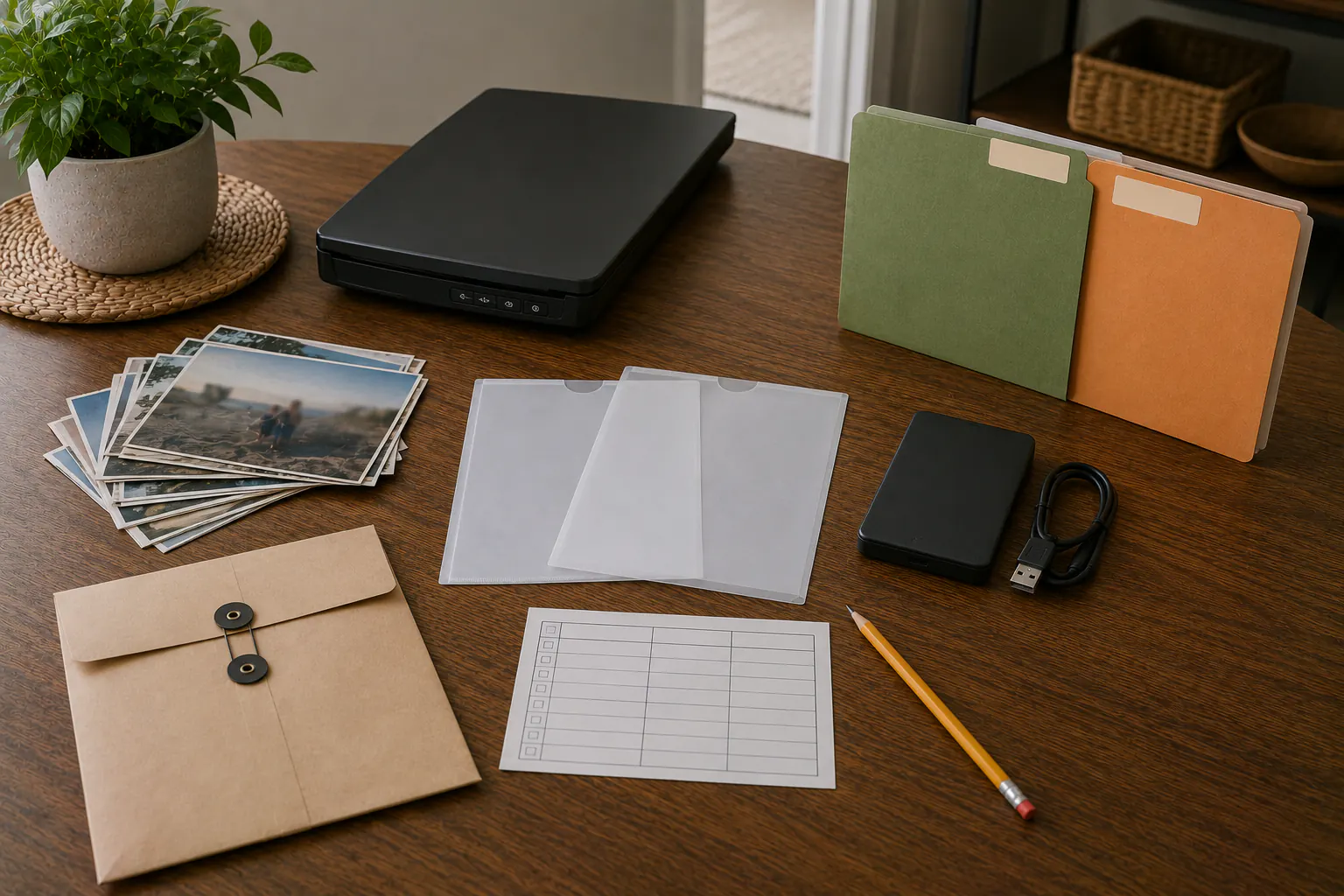
A reliable archive starts by separating content, index, and access:
- the content is the photo, document, message export, or backup;
- the index explains what exists, where it belongs, and who owns it;
- the access material includes passwords, encryption keys, applications, and legitimate recovery methods.
Never keep the only access material inside the encrypted content it unlocks.
Inventory the places data actually lives
For the one item you chose, consider the places that apply. A whole-household inventory is optional:
- phones and tablets;
- laptop and desktop user folders;
- camera cards and internal camera memory;
- external drives and old computers;
- cloud photo libraries and storage accounts;
- email attachments and scanner applications;
- messaging applications with irreplaceable media;
- shared family albums and folders;
- social-platform exports where originals no longer exist;
- work or school systems that must not be copied into a personal archive;
- paper documents awaiting scanning.
Record ownership and permission. A shared family archive should not silently absorb private messages, another adult’s identity records, employer data, or a child’s sensitive information without a defined purpose and controlled access.
Sort by consequence and replaceability
| Question | What to check |
|---|---|
| Could you replace it | Another legitimate source may exist; an original family memory may not. |
| Who may copy it | Actual owner, provider and organizational permission, not just shared-device access. |
| What must stay private | Identity, financial, care, work and recovery material needs separately protected records. |
| What needs prompt help | Care, safety, reporting or a deadline before a backup exercise. |
More copies are not automatically better for restricted data. Back up what is needed, encrypt where appropriate, and avoid scattering sensitive scans across every device.
Consolidate photos without destroying originals
Use a staged process:
- Connect only known, healthy media to an updated trusted device.
- Copy into a temporary intake folder; do not move or delete originals yet.
- Preserve available original filenames, timestamps, metadata, and folder context.
- Group by broad date or event without renaming everything at once.
- Check file counts and open a sample from the beginning, middle, and end.
- Include the intake folder in the backup system.
- Create or verify an off-site copy.
- Keep the originals and earlier copies. A sample and file count do not establish that every file, original quality or metadata survived; resolve retention and completeness before any deletion.
Avoid editing the only original. Exported social-media files may be compressed or stripped of metadata; treat them as a recovery source, not automatically equivalent to the camera original.
Automatic phone-photo upload is useful but may synchronize deletions, limited-resolution settings, account lockout, or storage-plan constraints. Confirm whether originals are local, cloud-only, optimized, shared, or included in a device backup. The exact behavior belongs to the platform.
Scan documents for recovery, not clutter
Prioritize documents needed for identity, housing, insurance, care, employment, education, vehicles, taxes, and estate administration. Ready.gov and CFPB advise copying important records and keeping copies securely, including away from the home.
For each scan:
- capture the complete page in readable light;
- include both sides when information appears on both;
- use a stable format supported by the household;
- name it with a date, document type, and owner without exposing unnecessary details;
- place it in a restricted folder where appropriate;
- verify readability before filing the original;
- record expiration or review dates separately;
- keep legal originals when required.
A scan may help during recovery but may not substitute for an original, certified copy, or provider-controlled record. Do not publish identity scans in shared links or attach them to unverified claim messages.
Treat device backups as their own data set
A phone or computer backup may include settings and application data that ordinary file synchronization omits. It may also omit cloud-synchronized material, downloaded files, health data, messages, or application-specific content. Review the platform’s current inclusion list.
Apple’s Mac backup guidance says encrypted local backup is needed for Health and Activity data and that the backup cannot be recovered without its password. That exact rule is platform-specific: check what your actual backup contains and what unlock material it requires. Do not erase a primary device or restore over current data as a practice exercise. Apple’s restoration instructions can involve device erasure or overwriting prior backups in specific circumstances; ask official support before an unfamiliar recovery change.
Record:
- last successful backup date;
- device and operating-system version;
- destination and owner;
- whether the backup is encrypted;
- where the separate unlock or recovery method is controlled;
- whether an authorized, non-destructive sample check has been performed, and what it did not verify;
- what still depends on a cloud account or internet connection.
Separate encryption recovery keys
Drive encryption can protect data when a device is stolen. It can also make data unrecoverable if the legitimate owner loses every unlock path. Microsoft states that support cannot recreate a lost BitLocker recovery key and advises storing copies away from the computer. Other platforms have different key and account-recovery designs.
Before enabling or changing encryption:
- verify a separate backup of irreplaceable data;
- read the current official platform instructions;
- identify every legitimate unlock and recovery path;
- store recovery material away from the encrypted device;
- avoid placing the only key inside the same account whose loss creates the lockout;
- verify that the recorded key belongs to the intended device or drive without exposing it;
- document owner, date, and replacement trigger;
- follow actual platform, organizational and legal retention requirements; do not dispose of originals, evidence or your only working access material as a drill.
Do not confuse a drive recovery key, account recovery key, MFA backup code, password-manager emergency kit, and cryptocurrency seed phrase. They have different powers and rules. Use the offline credentials guide for controlled storage.
Build a small archive register
For one item, these optional fields can help. Leave uncertain details blank:
| Field | Useful note |
|---|---|
| General item | A photo group or document category without sensitive contents or identifying filenames. |
| Existing copy type | Provider or storage type, not a precise secret location or credential. |
| Access question | Official provider/administrator route or a permitted role. |
| Last check | What was actually checked and one unresolved question, not a whole-archive approval. |
Keep passwords, codes, keys, identifiers and exact secret locations out of site forms, ordinary email and broadly shared notes. Preserve necessary original recovery material separately; do not mask or rewrite the actual secret to fit a checklist. A helper is optional; use the provider’s own authorized route if you work alone.
Check one sample without risking the original
During normal authorized conditions, choose one non-sensitive file and follow the actual backup system’s non-destructive instructions. Restore to a separate destination, open that copy and record what you checked. Keep originals and earlier backups. No quarterly/full-archive rehearsal is required. A successful sample does not prove all files are recoverable or that media is free of compromise; ask qualified help about damaged, suspect or unfamiliar storage before connecting it.
For long-lived archives, keep a manifest or file inventory and investigate unexpected changes in file count, size, readability, or checksums where the household has a reliable tool and understands the output. Integrity checking can reveal change; it does not identify the cause or repair a damaged file.
Use the 3-2-1 backup guide for copy design, the coverage audit for omissions, and the digital continuity hub for account and power dependencies.
Sources reviewed
- Federal Trade Commission: How to Protect Your Phone From Hackers
- CISA: How to Protect the Data Stored on Your Devices
- Apple Support: Back Up and Restore an iPhone or iPad With a Computer
- Microsoft Support: Back Up Your BitLocker Recovery Key
- Ready.gov and CFPB: Your Disaster Checklist
Historical source review: July 14, 2026. Apple’s Mac backup and device-restoration pages and Microsoft’s BitLocker key-backup page were checked October 3 for those specific password, original-copy and key-recovery limits. Historical CISA/Ready.gov records remain, not a new full re-verification. Platform inclusion, synchronization, encryption, retention and recovery behavior changes; use the current official instructions for the exact device and service.