
Pick one file you would not want to lose, such as a family photo or a household document you are allowed to copy. Check where the original lives and whether another copy exists. If you do not know, note the gap; do not delete, move, or overwrite the original to make the plan look tidy. A private note and one file are enough to start, without new equipment or a helper.
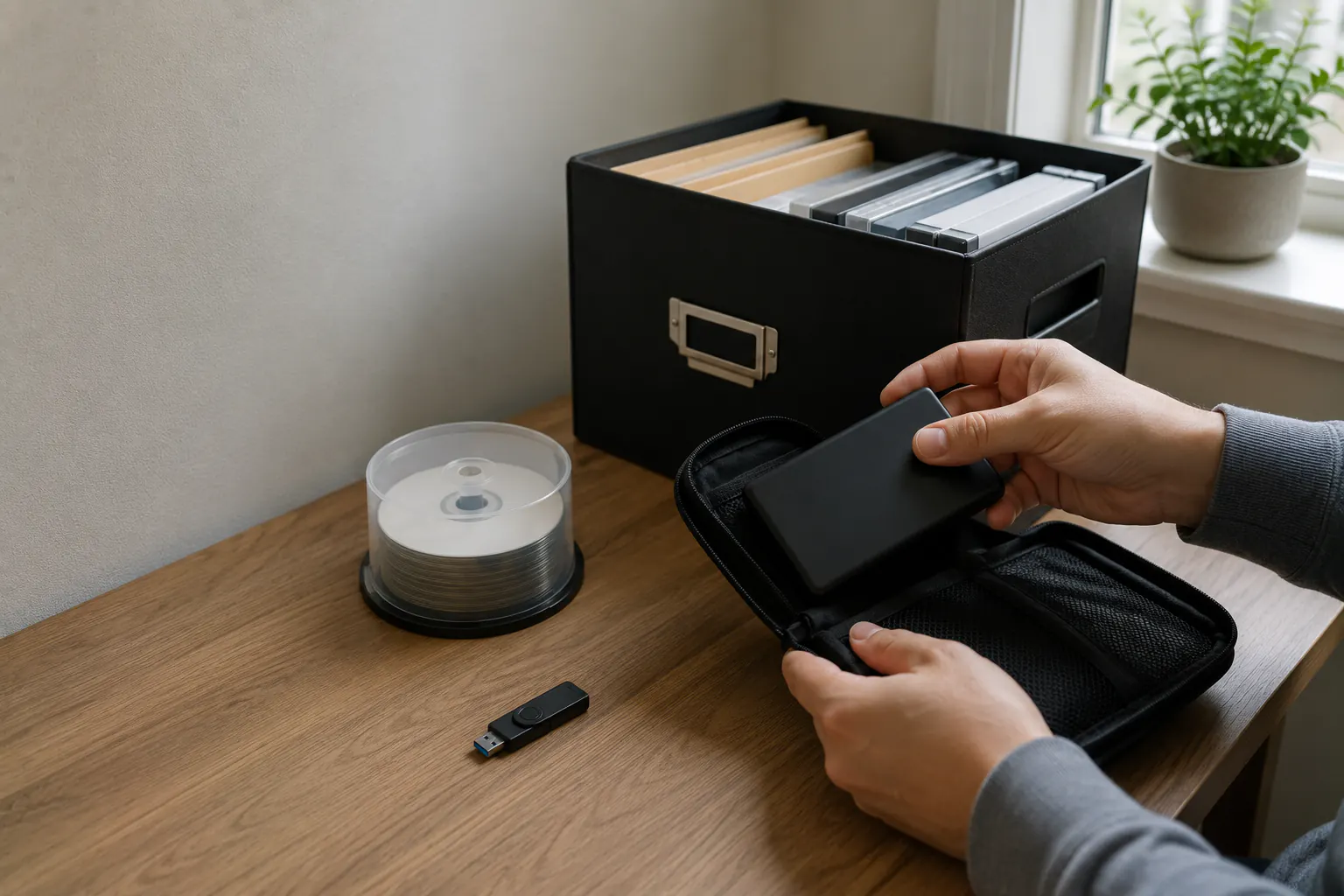
The 3-2-1 method is a way to plan copies that are less likely to disappear together:
- keep three copies of important data, including the working copy;
- store them on two different types of storage, while checking what could affect them together;
- keep one copy off-site.
The count is not a guarantee. Copies attached to the same computer, stored in the same room, or dependent on one account can still fail together. Different folders or partitions do not necessarily provide different storage. You also need to know what was copied, which older versions remain, and whether the needed file can be restored.
This guide is for ordinary preparation with authorized household data. Care, necessary communication, urgent reporting, and departure come before a backup exercise. It does not replace an employer’s policy, regulated-record requirements, forensic preservation, or professional recovery from damaged or compromised media. Do not copy managed work, school, or care records into personal storage without permission.
Start with the losses that matter
Ask two ordinary questions: what would be lost since the last copy, and when would you actually need this file? Unknowns can stay blank. There is no generic safe delay for care, essential equipment, finances, or reporting; the existing plan and responsible organization set the requirements.
| File or task | Question to ask |
|---|---|
| Current work or school file | May I copy it, and what is the actual deadline or organization’s backup route? |
| Household document | Where is the necessary original, and is the copy up to date? A backup does not settle coverage or reporting requirements. |
| Contact or care information | What does the existing communication or care plan require? Do not interrupt prescribed care to check a backup. |
| Family photo or video | Is there a separate copy of the version I want to keep? |
| Replaceable file | Could I legitimately obtain it again, or does it contain something unique? |
Design three copies that do not fail together
For a household with one laptop and two phones, a pattern to evaluate could be:
- Working copy: current files on the laptop and phones.
- Local backup: versioned backup to an encrypted external drive that is disconnected after completion.
- Off-site backup: appropriately protected cloud backup, or a rotated encrypted drive stored at another authorized, secure location.
That is only an example, not a purchase list or verified configuration. Each option has access, retention, power, compatibility, privacy, and recovery dependencies. Ask whether one theft, fire, flood, account lockout, electrical event, deletion, or malware incident could reach all copies. Off-site storage reduces some shared-location risks; it does not guarantee survival or recovery.
Two partitions on one physical drive are not two media. Two folders inside one cloud account are not independent. A USB drive permanently attached to an infected computer may be reachable by the same destructive event. A drive stored beside the laptop is not meaningfully off-site for fire or theft.
Add the controls the slogan leaves out
Version history
Immediate synchronization is convenient, but it may propagate deletion or corruption. Keep prior versions long enough for a quiet problem to be noticed. Retention should reflect how often the data changes and how long an error might remain hidden.
Isolation
At least one copy should not be continuously writable from the normal user account or primary device. For a simple household, that may be a disconnected drive or a service with protected versions. Isolation reduces common-cause failure; it does not make a copy automatically clean.
Encryption and key recovery
Encryption can reduce exposure if storage is lost or stolen, but losing the key may prevent recovery. Before changing an existing setup, follow the actual platform’s instructions and protect the necessary recovery material separately. Do not reformat, re-encrypt, reset, or erase a sole good copy as an experiment. Use the photos, documents, and recovery-keys guide for protected location clues and key dependencies.
Verification
An application saying “backup complete” does not prove every expected folder was included or that the copy can be restored. Review logs or status, investigate repeated failures, and perform small restoration tests.
Power and physical care
Do not begin a large backup or firmware change when power is unstable. Keep drives dry, ventilated, protected from impact, and within the manufacturer’s temperature limits. Eject removable storage through the operating system before disconnecting it. Backup power can provide orderly shutdown time, but it does not replace a backup; compare roles in the home data storage and power guide.
Build a schedule the household will keep
Match copying to the changes you cannot afford to lose. New photos, a revised household document, or a changed device can be useful prompts to check the relevant copy. Automatic backup may help, but verify what your actual service includes and what happens when storage fills or an upload fails.
If you are handling this alone, you can check one status or record the provider’s recovery route yourself. An authorized helper and a calendar reminder are optional. Do not share passwords or widen access just to assign a second person. The responsible organization controls managed accounts and records.
Use a backup register
For one file or folder, make a private note with its general location, where another copy should be, the service’s last-success date if known, and any missing access or compatible device. Leave uncertain details blank; a reported success date is not a restore test.
Keep passwords, encryption keys, recovery codes, sensitive filenames, exact secret locations, and full or partial account/policy/member identifiers in separately protected records. Do not send them through this site’s forms or email. A general note should help you find the legitimate recovery route without becoming a map for theft.
Preserve necessary originals and prior backups while their actual retention, reporting, and recovery needs are understood. A new copy does not authorize deleting an older one or altering an original record.
Test a restoration safely
When you can do so safely, follow the actual service’s restoration instructions for one small, non-sensitive sample:
- choose a small, non-sensitive file that exists in the expected backup;
- confirm the backup date and version before restoring;
- restore to a separate temporary folder, not over the original;
- open the restored file and compare it with the source;
- note how long retrieval took and which credentials, device, application, or internet connection were required;
- record the result and correct any missing folder, failed login, obsolete cable, expired account, or undocumented key dependency;
- handle an unnecessary test copy through the device or service’s documented process, without deleting the original or backup.
An optional later check can use a different authorized recovery path. A successful local sample does not validate the off-site copy or every file. A restore from an already trusted computer does not establish that recovery will work without that computer. It does not rule out contamination or guarantee future recovery.
Do not wipe a primary device, remove the only working sign-in method, expose real codes, or restore over the only good copy as a drill. Suspected compromise or a damaged source/destination calls for qualified help, not connection of more backup media. A reminder after a change can be useful; there is no quarterly prerequisite or need to finish the whole archive today.
Plan for ransomware without diagnosing it yourself
NIST’s ransomware overview emphasizes planning, isolated backups, and restoration checks for organizations. The useful household question is narrower: could this incident reach both the original and its copy? Keep:
- a known-clean way to reach provider and professional help;
- a record of which devices and accounts may reach each backup;
- an offline or otherwise isolated recovery copy;
- a decision not to connect additional backup media to a suspicious device;
- a method to identify the last known good version;
- official reporting and identity-theft resources.
If files suddenly change extension, a ransom message appears, accounts show unknown sessions, or many files become unreadable, stop experimenting and do not attach additional backup media. Do not delete or rotate away older copies because a new upload completed. Use provider or qualified incident-response instructions for ongoing backup activity; a new copy might contain damaged data. Follow the household ransomware preparedness guide. Urgent help and bank, employer, or school reporting come before finishing records.
Common 3-2-1 failures
- Counting synchronization as the only backup.
- Leaving every removable drive connected.
- Protecting all copies with one account and no recovery alternative.
- Encrypting a drive before securing the recovery key.
- Backing up the default folders but omitting application data, phone messages, scans, shared folders, or external media.
- Buying storage without checking its actual copy and recovery process.
- Assuming cloud services retain deleted or previous versions forever.
- Discovering during recovery that the required cable, software, operating system, or internet connection is unavailable.
- Never restoring a sample.
A minimum viable household plan
Choose one useful file and identify one gap: no separate copy, an unknown version, missing recovery instructions, or untested access. Improve that gap through the actual service’s instructions when it is safe to do so. A simple next action is more useful than a complete register filled with guesses. You can return to off-site coverage and the next file later.
Use the personal backup coverage audit to find remaining gaps and the digital continuity hub to connect backups with account and power recovery.
Sources reviewed
- CISA: StopRansomware Guide; How to Protect the Data Stored on Your Devices
- NIST: Data Integrity, Detecting and Responding to Ransomware and Other Destructive Events; Ransomware Tips and Tactics
- Federal Trade Commission: Five Ways to Keep Scammers and Hackers Away
Historical source review: July 14, 2026. The FTC protection page and NIST ransomware overview were checked October 3 for basic backup, isolation, and restoration principles; the NIST SP 1800-26 publication overview was read for scope, not its full technical implementation. Storage services, operating systems, encryption, retention, and recovery methods change. Verify the actual folders, versions, settings, restore process, and recovery requirements in the current official documentation before relying on a system.